Getting started
The dashboard
The first thing you see after signing in. It answers one question across every project you can access: what needs you today?
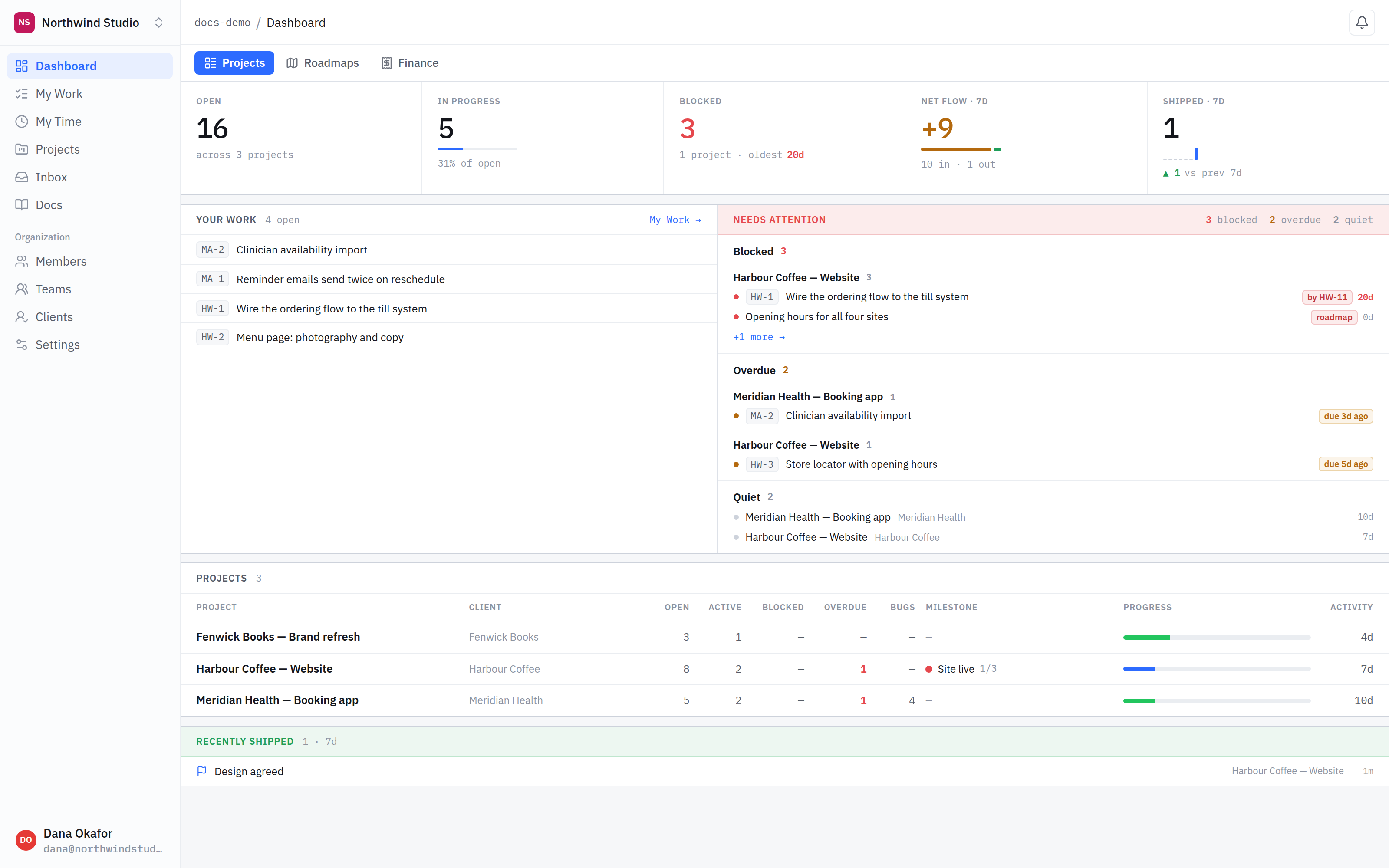
- Project rail. Every project you have access to. Projects are flat — there are no nested folders to navigate.
- Counts across everything. Open, in progress and blocked across all your projects at once, plus what came in and went out over the last seven days.
- Your work. Only what is assigned to you, from every project, so you do not have to visit each one to find your own list.
- Needs attention. Blocked work, anything overdue, and projects that have gone quiet. A blocked item names what is blocking it.
- Projects. One row per project with its client, counts, current milestone and when it was last touched.
Reading “needs attention”
Three different problems share this panel, and they mean different things.
- Blocked — something is waiting on something else. The tag names the blocker, and often that blocker is the client: content you have not been sent, or approval you have not been given.
- Overdue — past its due date and still open.
- Quiet — nothing has changed on the project for a while. That is not a warning; some projects are genuinely waiting on someone else. It is here so a stalled project cannot sit unnoticed behind the ones you touch daily.
Only what you can see. The dashboard is scoped to your access. Project access is all or nothing — you are on a project or you are not — and the dashboard never counts work from a project you are not on.
What is next
Once the dashboard makes sense, the next thing worth understanding is setting up a project, and then which modules it shows — that is what keeps the app small.